Daily Use
This page is for the person using ProPR after setup. Most work happens in the Web UI and GitHub pull request comments.
ProPR is modular: each section below is a stage you can use on its own. Plan without implementing, implement issues you wrote by hand, or review and fix pull requests ProPR never created. The end-to-end flow ties these together, but you only need the stages you want.
Start With The Web UI
Use the Web UI to:
- Add repositories
- Choose base branches
- Configure agents and default models
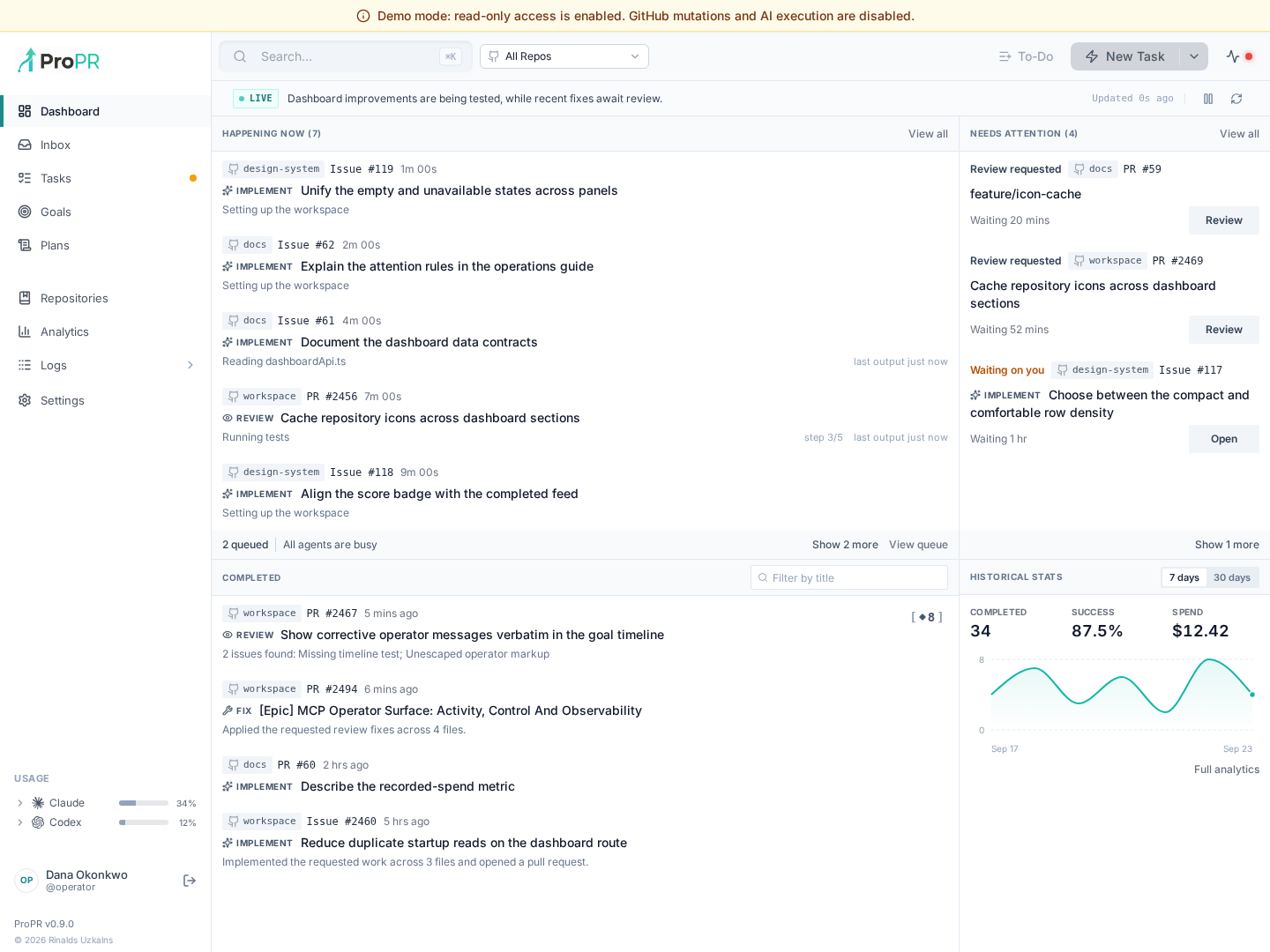
- Check queue and task status
- Open task records, logs, commits, and pull requests
- Review repository summaries and context
Environment variables and CLI commands are mostly for install and development work.
Run Work From An Issue
- Create or choose a GitHub issue.
- Make sure the issue is clear enough for implementation.
- Add your configured processing label, such as
AIorpropr. - Optionally add a model label, such as
llm-claude-fableorllm-codex-gpt56-sol. - Watch the task in the Web UI.
- Review the pull request ProPR creates. The PR body links the issue with
Closes #N, so merging it closes the issue.
The issue can come from anywhere. It does not have to be created by Planner Studio — a hand-written issue, or one produced by another planning tool, works the same way. Adding the processing label is what triggers ProPR to implement it. This makes "issue implementation only" a valid way to use ProPR: write the spec yourself, then label it.
The exact labels and model IDs come from your repository and AI Agent settings.
How Labels Work
- Trigger/processing labels (configurable, e.g.
AI,propr) start a run. "Trigger label" and "processing label" refer to the same label you add yourself. - State labels are applied automatically as the run progresses:
<trigger>-processing,<trigger>-done, and<trigger>-failed-*variants on failure (for exampleAI-processing,AI-done). - Model labels (
llm-...) select the agent and model, for examplellm-claude-fable51,llm-codex-astra,llm-antigravity-flash38,llm-opencode-big-pickle,llm-vibe-mistral. Adding several model labels to one issue produces one run, branch, and PR per model, so you can compare results. base-<branch>targets a non-default base branch, for examplebase-develop.level-<level>overrides the configured reasoning level for that issue, for examplelevel-xhighorlevel-max. Valid levels arelow,medium,high,xhigh,max,ultra,ultracode, andauto. Claude receivesautoas adaptive effort; Codex omits the override forautoand uses its own default selection. Unlike model labels, adding a reasoning level does not fan out extra runs; if multiple reasoning labels are present, the highest-priority valid level applies to every run created for the issue. For PR follow-ups, a level label directly on the PR takes precedence over labels inherited from its linked issue.
Throughout these docs, "processing label" means the configured trigger label you add yourself (for example AI or propr). The <trigger>-processing state label is a separate label that ProPR applies automatically while a run is in progress.
Run Work From A Plan
Use Planner Studio when the work needs a plan before it runs:
- Create a draft.
- Add the request and supporting context.
- Preview context and cost.
- Generate and review the plan.
- Split large work into smaller issues.
- Configure execution and run the issues.
See Planner Studio for the guided workflow.
You can also use Planner Studio for planning only: review and finalize the plan into GitHub issues (steps 1–5), then stop there and implement the issues manually or with another tool. Finalized issues have no trigger label, so nothing runs until you choose to add one.
Refine A Pull Request
This works on any eligible pull request, whether or not ProPR created it. To review or fix only, comment /review or /fix on a PR opened elsewhere — slash commands from an allowed author run directly, with no processing label required. To take over an existing PR so natural comments are picked up too, add a processing label such as AI or propr to the PR, then comment normally.
For normal follow-up, post a regular GitHub PR comment:
Please update the empty state copy and add a regression test.
ProPR processes normal user comments directly. You do not need a slash command for direct human instructions. Line-level review comments carry their file and line context, and images attached to comments are available to the agent. Natural comments require the PR to carry a processing label or the comment to include a configured trigger keyword (for example !propr).
Use slash commands only for specific actions:
/reviewposts a read-only AI evaluation with severity-ranked findings and aScore: N/10line. Run it with multiple models (/review claude-fable codex-gpt55), and any text on the lines below the command becomes focus instructions for the review./fixapplies unprocessed AI review comments generated by/review./mergemerges the base branch into the PR branch, attempts automatic conflict resolution, and reports back./switch <model-id>changes the PR's model label going forward./use <model-id>runs one follow-up task with that model without changing the PR's model./ultrafixruns a review-fix loop. Parameters:goal=<score>,max=<cycles>,pause=<seconds>,model=<model-id>, for example/ultrafix goal=9 max=5. It waits for CI checks and PR inactivity between cycles. TheultrafixPR label is the circuit breaker — remove it to stop the loop.
See PR Slash Commands.
Monitor And Recover
When something looks wrong, open the task record first. Check:
- Current task state
- Selected agent and model
- Logs or streamed output
- Related commit and PR
- Failure message
Most recovery starts from the PR conversation: add a clearer follow-up comment, switch models, rerun a review/fix loop, or split the remaining work into a smaller task.
Common Next Steps
- For local setup, see Setup.
- For larger work, see Work Splitting.
- For task records and logs, see Observability And Control.
- For CLI and source-development commands, see CLI Workflows.
Launch from the UI and follow up
Use New Task for a single instruction, a goal for continuing work with corrections, or Planner Studio for a reviewed issue plan. The dashboard summarizes current activity and Inbox opens the corresponding task, plan or goal. Notification preferences are personal; repository settings can suppress future notifications without stopping work.