Desktop application
ProPR Desktop runs the ProPR Web UI in a sandboxed Electron window and connects it to one or more ProPR instances. It is a client: agents, repositories and task state stay on the instance you connect to. On Linux it can also install and run a local ProPR stack for you. The desktop app does not change the browser Web UI, CLI, API or self-hosted behavior.
Platforms
| Platform | Packages | Connect to an instance | Guided local setup |
|---|---|---|---|
| Linux x64 | DEB, RPM, ZIP | Yes | Yes |
| Linux arm64 | DEB, RPM, ZIP | Yes | No: the propr/agent image is published for amd64 only |
| macOS Intel | DMG, ZIP | Yes | No |
| macOS Apple Silicon | DMG, ZIP | Yes | No |
| Windows | Not available yet |
Download
Desktop packages are published as assets on the ProPR
GitHub Releases page. Asset names follow
ProPR-Desktop-<version>-<os>-<arch>.<ext>, for example ProPR-Desktop-0.9.0-linux-x64.deb or
ProPR-Desktop-0.9.0-macos-arm64.dmg. Choose the package that matches your operating system and CPU (x64 for
Intel/AMD, arm64 for ARM and Apple Silicon).
Each release includes a SHA256SUMS file. Verify downloads before installing:
sha256sum --check --ignore-missing SHA256SUMS         # Linux, from the download folder
shasum -a 256 ProPR-Desktop-0.9.0-macos-arm64.dmg     # macOS: compare with the SHA256SUMS line
Install
Linux
sudo apt install ./ProPR-Desktop-0.9.0-linux-x64.deb   # Debian, Ubuntu
sudo dnf install ./ProPR-Desktop-0.9.0-linux-x64.rpm   # Fedora, RHEL family
propr-desktop                                          # launch (or use your application menu)
Use arm64 in the file name on ARM hosts. Pick either the DEB or the RPM for a machine, and don't mix them. Pairing
stores credentials in the Secret Service keyring (GNOME Keyring, KWallet and similar), so start an unlocked keyring
session before connecting. Don't run the app as root.
macOS
Open the DMG and drag ProPR to Applications, or unzip the ZIP archive and move the app to Applications.
The macOS builds are not yet signed with an Apple Developer ID or notarized, so Gatekeeper blocks the first launch. macOS 15 Sequoia and later removed the Control-click → Open shortcut. To allow the app:
- Open ProPR once. macOS reports that it can't verify the app; click Done.
- Open System Settings → Privacy & Security and scroll to Security.
- Click Open Anyway next to the ProPR message (it appears for about an hour after the blocked attempt), then confirm with your login password.
macOS remembers the exception, and later launches open normally. See Apple's guide to opening an app from an unknown developer.
Alternatively, remove the quarantine attribute from Terminal. The app bundle on disk is named propr-desktop.app, even
though Finder shows ProPR:
xattr -dr com.apple.quarantine /Applications/propr-desktop.app
Native macOS notifications may not be delivered by an unsigned build.
First launch and connection
On Linux or macOS, choose Set up this computer to install a desktop-managed local stack, or Connect to an existing instance to use a stack that is already running. Windows guided setup remains unsupported.
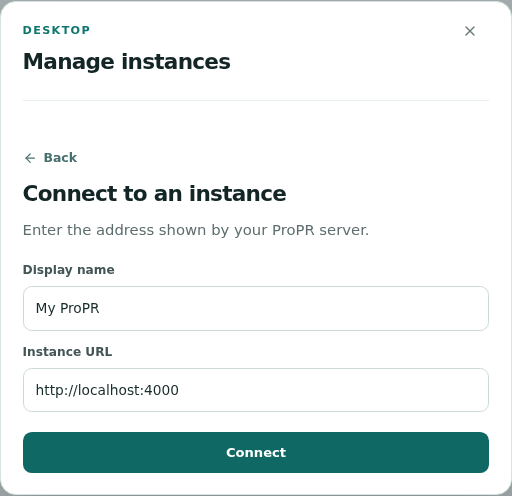
- Enter the instance address. Remote instances need HTTPS, such as your own host or a ProPR Connect managed tunnel
(
https://t-<instance>.propr.dev). Plain HTTP is accepted only for loopback development addresses. - The app checks compatibility and the instance's identity before asking you to sign in.
- Select Sign in in browser and approve the request in your default browser with your GitHub account. While the app waits, Reopen browser retries the same approval and Copy approval link copies it for another browser.
- Confirm the @username shown in the desktop dialog.
The app receives an instance token, never a GitHub token or password, and stores it encrypted with the operating
system's credential store. A ProPR Connect discovery result or propr://connect link opens a confirmation screen; it
never pairs automatically. See Desktop pairing protocol for the protocol details.
After connecting, select Connected: instance name to open the instance manager. Add, switch, edit, remove, retry or re-pair instances there. Offline instances stay saved for retry. A revoked or expired connection asks you to pair in the browser again. If a managed tunnel's address or identity changes, confirm and pair again.
Saved GitHub accounts
You can save several GitHub accounts, including two accounts on the same instance. In the instance manager, select Add account beside the instance, approve in the browser, and confirm the @username in the desktop dialog. If the browser picks the wrong GitHub identity, cancel and open the approval link in a browser profile signed in to the intended account. ProPR never collects GitHub passwords or signs the browser out of GitHub.
One account is active per window. Switching accounts reloads the app under the new account; server work already started by the previous account keeps running. Logging out retires only the active account's credential.
Guided local setup (Linux and macOS)
Set up this computer installs a ProPR stack managed by the app, using the same setup engine as propr setup in the
CLI. Before starting, make sure that:
- Docker Engine (Linux) or Docker Desktop (macOS) is installed and running, and your user can run
docker infowithoutsudo; - the machine can reach GitHub and Docker Hub;
- a terminal emulator is installed (
x-terminal-emulator, GNOME Terminal, Konsole or xterm) for interactive GitHub and agent logins on Linux. macOS uses Terminal for explicit GitHub and agent authentication.
The wizard checks the host before changing anything. You choose GitHub authentication, event intake, coding agents and an optional user allowlist. Setup then pulls the runtime images that match the desktop release, opens a terminal for interactive logins, starts the services, verifies their health, and opens the normal secure identity and browser-pairing flow. GitHub authorization, installation selection, coding-agent login, and pairing approval remain explicit interactions.
Cancel safely stops the current step and retains durable data for retry. It does not remove unrelated Docker resources. A failed, cancelled or interrupted run reopens in recovery: use Retry setup after fixing a host problem, or Review saved choices to change credentials or other selections. When an existing desktop-managed stack runs an incompatible version, Restart with aligned runtime replaces only that stack's containers with the packaged versions and keeps its database, credentials, logs and repositories.
Desktop-managed runtime roots require owner-only mode 0700 on Linux and macOS. Opening an existing owned
root normalizes its mode before authority is acquired; provisioning does not broaden it. A later permission change
invalidates the active setup authority. Stop setup, restore owner-only permissions on the verified managed directory,
then reopen setup; never relax ancestor, ownership, or symlink checks.
macOS prerequisites and recovery
Finder launches do not inherit a terminal shell profile. Setup adds Docker Desktop's standard
/Applications/Docker.app/Contents/Resources/bin, ~/.docker/bin, /opt/homebrew/bin, and /usr/local/bin
to its own process search path. It does not edit shell files, install Docker, change Docker permissions, or grant access.
If Docker is missing, install Docker Desktop yourself. If its daemon is unavailable, open Docker Desktop,
wait for the engine, check the selected Docker context, and retry.
The fixed runtime root is ~/Library/Application Support/propr-desktop/local-runtime (inside the app's user-data directory).
The host uses the integrity-pinned Darwin descriptor/ACL helpers for identity publication; symbolic links,
unexpected owners, writable ancestry, unsafe ACLs, and replaced inodes fail closed. The Linux API container
uses its existing descriptor-relative adapter. Missing native authority helpers are an error, not a fallback to path-only writes.
Docker Desktop must be able to bind the runtime and selected agent directories. If Docker reports a mount denied or file-sharing error, review Settings → Resources → File sharing yourself and retry; the original Docker error is retained. Setup does not grant access automatically. Local service URLs remain loopback URLs.
On Apple Silicon, service images must declare Linux ARM64 in their actual manifest (or local image metadata for source builds). The current coding-agent image is Linux AMD64, pulled and authenticated explicitly using that platform; Docker Desktop emulation is required. An ARM64 desktop binary is not proof that the agent image is ARM64. Image inspection and later agent validation fail visibly when the required platform or execution is unavailable.
Native Mac verification for this change is still required before claiming a qualified macOS release. See the macOS acceptance contract; Linux CI and held-pull checks alone do not prove full provisioning.
Version and diagnostics
About ProPR shows the app version and a Copy Version Details action. Connection Diagnostics shows the desktop app version and the connected instance's version separately. Updating the desktop app does not upgrade a remote instance.
Installation-level Settings belong to the connected server. Connection management and diagnostics belong to the app.
Menus, tray and shortcuts
| Menu | Actions and shortcuts |
|---|---|
| ProPR | About ProPR (Cmd+Shift+P), Settings… (Cmd+,), Quit ProPR (Cmd+Q); on macOS also Services, Hide ProPR (Cmd+H), Hide Others (Cmd+Option+H), Show All (Cmd+Option+Shift+H) |
| File | New Task (Cmd+Shift+T), New Plan (Cmd+N), New Goal (Cmd+Shift+G), New Automation (Cmd+Shift+A), New To-do (Cmd+Shift+D), Connect Instance… (Cmd+Shift+N), Switch Account / Instance… (Cmd+Shift+I), Close Window (Cmd+W) |
| Edit | Undo (Cmd+Z), Redo (Cmd+Shift+Z), Cut, Copy, Paste, Select All (Cmd+X/C/V/A); on macOS also Paste and Match Style (Cmd+Option+Shift+V) |
| View | Toggle Sidebar (Ctrl+Cmd+S on macOS, Ctrl+B on Linux), Actual Size (Cmd+0), Zoom In (Cmd+Plus), Zoom Out (Cmd+-), Toggle Full Screen (Ctrl+Cmd+F on macOS, F11 on Linux) |
| Navigate | Back (Cmd+[), Forward (Cmd+]), Search / Go To… (Cmd+K), Dashboard (Cmd+D), Inbox (Cmd+I), Plans (Cmd+P), Goals (Cmd+G), Tasks (Cmd+T), Repositories (Cmd+R) |
| Window | Minimize (Cmd+M); on macOS also Zoom (Cmd+Shift+M) and Bring All to Front (Cmd+Option+Shift+M) |
| Help | ProPR Website (Cmd+Shift+O), Documentation (Cmd+/), Connection Help (Cmd+Shift+H), Connection Diagnostics… (Cmd+Shift+L), Report a Problem… (Cmd+Shift+B) |
A plain Cmd+letter shortcut opens a page and Cmd+Shift+letter runs an action. For example, Cmd+T opens Tasks
and Cmd+Shift+T starts a new task. A shortcut runs the same action as its menu entry. When that entry is unavailable,
for example while signed out, the shortcut does nothing. Shortcuts work only while a ProPR window is focused. Your
desktop, input method or keyboard tools can claim a shortcut before ProPR receives it. For example, IBus uses
Ctrl+Shift+U and Ctrl+Shift+E, and GNOME uses Ctrl+Alt+T. ProPR avoids those chords, but desktops can be
reconfigured. If a shortcut does nothing while its menu entry works, check your desktop and input-method shortcuts.
On Linux, use Ctrl in place of Cmd. The Linux window has no native menu bar, so open these menus with the
Application menu button (⋮) beside the minimize, maximize and close buttons, or press F10 or Alt+F. The
shortcuts leave focus in the current field, so Edit actions apply to it. Press Escape to close the menu. The
File creation entries open the same forms as the toolbar's creation button and quick add To-Do; nothing is created
until you submit the form, and they are unavailable in demo mode. Alt+T still opens quick add. The Linux tray icon and the macOS menu-bar item show task and plan counts and
offer New Plan, Tasks, Plans, Inbox, instance switching, notification settings, and pausing or resuming native
notifications. On Linux, left-clicking the tray icon restores the ProPR window.
Native notifications are off until you enable them in Settings → Desktop notifications. Once enabled, Task failed and Needs attention are selected by default.
Updating
- Linux: the app does not update itself and there is no apt or dnf repository yet. Download the newer package and run
sudo apt install ./ProPR-Desktop-<version>-linux-<arch>.deborsudo dnf upgrade ./ProPR-Desktop-<version>-linux-<arch>.rpm. - macOS: the unsigned builds do not update themselves. Quit ProPR, then replace the app in Applications with the newer download.
Saved instances and accounts are kept across updates.
Security model
- The window's renderer is sandboxed: it has no Node.js, shell, filesystem or credential access.
- Instance tokens stay in the app's main process and are encrypted with the OS credential store (Keychain on macOS, Secret Service on Linux). If secure storage is unavailable, pairing fails instead of writing a plaintext file.
- Credentials are sent only to the exact instance they were issued for. Reconnecting, switching instances or a tunnel change re-checks the instance's identity before a saved token is used.
- Deep links accept only
propr://connectandpropr://open; anything else is rejected.
Troubleshooting
- No local setup option: use a build with guided Linux/macOS support. Windows remains remote-only.
- Docker absent, down or permission denied: on Linux, install and start Docker and add your user to the
dockergroup. On macOS, open Docker Desktop and check that the selected context uses its local Linux engine, then retry. - Authentication terminal unavailable: on Linux, install one of the supported terminal emulators. On macOS, open Terminal and retry.
- Secure storage unavailable: on Linux, start an unlocked Secret Service keyring session. On macOS, use the unlocked GUI session and review the ProPR Safe Storage Keychain prompt; approve access only if intended, without resetting the Keychain. Pairing never falls back to a plaintext credential file.
- Offline: restore network access to the instance and retry. The saved connection is kept.
- Connection revoked or expired: pair again in the browser. A role or allowlist change can also require a new approval.
- Repository GitHub authorization required:
GITHUB_AUTHORIZATION_REQUIREDandGITHUB_REAUTH_REQUIREDrefer to the GitHub grant used for repository access, not the desktop connection. Sign in with GitHub again in a browser on the same ProPR instance, then retry. You don't need to remove or re-pair the desktop connection. - Incompatible runtime: follow the recovery action in setup. For an existing desktop-managed stack, use Restart with aligned runtime.
- Tunnel root returns 404: this is expected. Connect tunnels serve
/api/*and/socket.io/*, not/.
Uninstall
- Linux:
sudo apt remove propr-desktoporsudo dnf remove propr-desktop. Removing the package does not delete a desktop-managed local stack or its data. - macOS: choose Quit ProPR and wait for the app to exit (closing the window does not quit it), then move the app from Applications to the Trash.