Web UI Guide
The ProPR Web UI configures repositories and agents, launches work, and shows progress and usage. Open it with propr ui. For ports, authentication and deployment, see Web UI integration; for terminal workflows, see the CLI.
Navigation And Chrome
The sidebar's work area contains Dashboard, Inbox, Tasks, Goals, Automations and Plans. The system area contains Repositories, Coding Agents (administrators), Analytics, the collapsible Logs group, Settings and Access (administrators). Count badges show current work and unread Inbox items. Agent Tank usage appears below navigation when enabled.
The header includes search (Cmd/Ctrl+K), activity/review controls, quick add to-do (Alt+T) and system health. Search opens a command palette that groups matching repositories, plans and tasks, with a preview of the highlighted item beside the list on wider screens. Tab and Shift+Tab switch between the All, Repos, Plans and Tasks tabs, Enter opens the highlighted item, Cmd/Ctrl+Enter opens it on GitHub, and Search all tasks runs the term as a full Tasks search. New Task is the default creation action. It becomes New Plan in Plans/Planner Studio, New Goal in Goals and New Automation in Automations; the adjacent menu offers the other actions. See Launching work to choose between them. After quick add confirms To-Do added, choose Add another to enter the next item without closing the popover. Desktop puts application information in About ProPR rather than the sidebar footer.
Voice briefings are experimental and off by default. Enable them in Settings to show the on-demand launcher; see Voice briefings. Demo mode is read-only and hides installation administration.
Dashboard
The landing page (/) shows a short activity summary above four areas:
- Needs attention collects failed work and decisions awaiting review. Open the linked entity to resolve the blocker; an empty queue shows an all-clear line.
- Happening now shows running tasks and goals, current activity, elapsed time and last output. Queue information explains waiting work when the server knows the reason.
- Completed groups results by the work they belong to. Expand an entry to inspect its individual runs and review results; use the title filter to narrow the feed.
- Historical stats shows completions, success rate and recorded spend for seven or thirty days. Unavailable measurements display “—”.
The repository filter applies across the dashboard and stays in the URL. Activity summaries describe recent work; usage tips link to relevant documentation. Live updates keep the last available data during a connection interruption. Analytics (/analytics) contains broader activity, repository and model reporting. A timeframe selector in its header (last 24 hours, 7 days, 30 days, 90 days, 12 months or all time; 30 days by default) scopes every section at once and stays in the URL as ?period=. The dashboard's Full analytics link opens it with the period the dashboard is showing. The page shows totals for the period (tasks, success rate, tokens and spend), daily activity, per-repository performance, a per-model breakdown of tasks, tokens and cost, the task status mix, and token consumption split into input and output with the spend per million tokens. Select a repository row to open its tasks (or its failure count to open just the failed ones), or a model row to open its LLM log; those lists are not limited to the selected period. Analytics always covers every repository, so the toolbar shows the repository scope locked to All Repos.
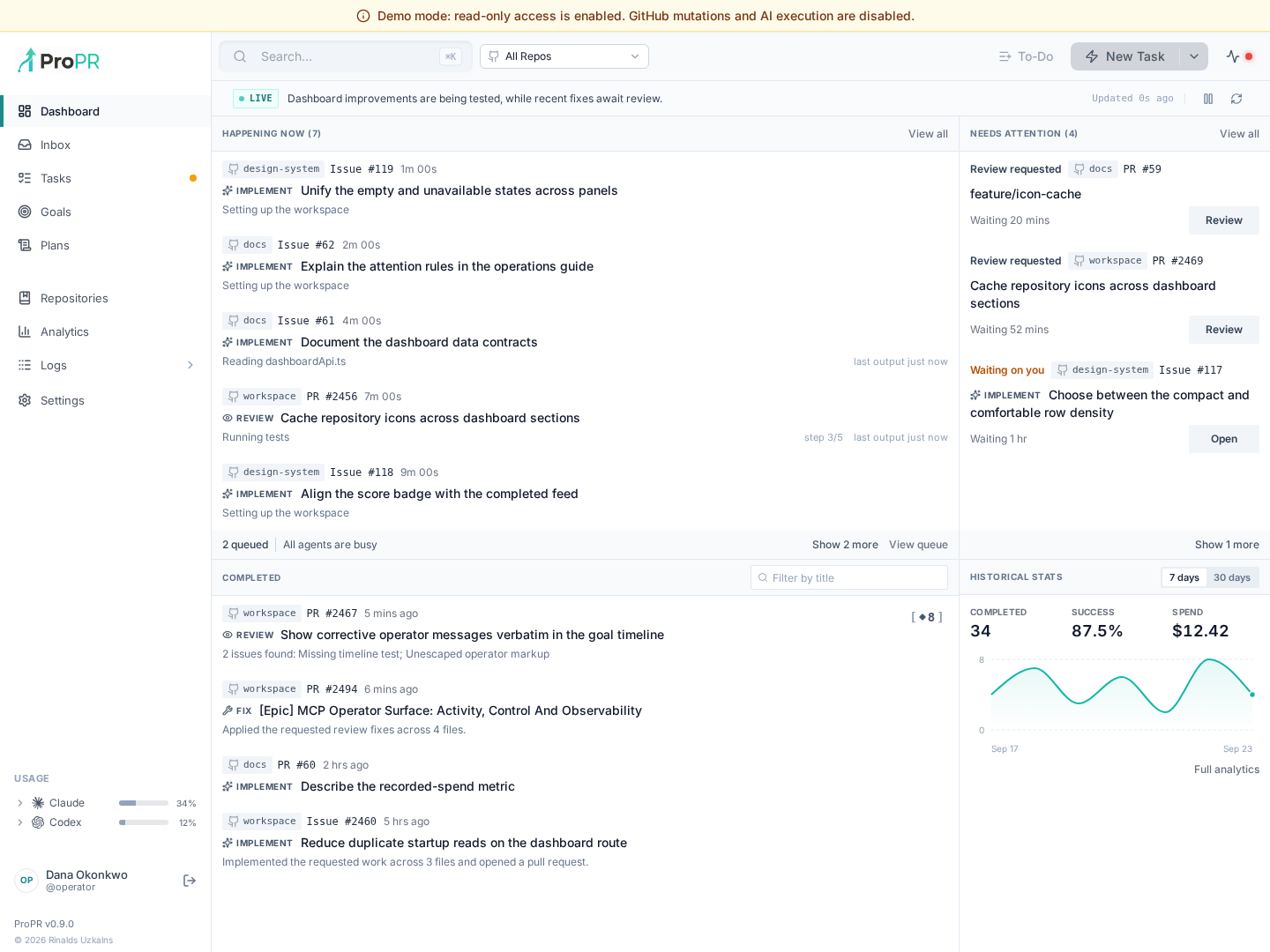
Screenshots in this guide use deterministic example data rendered by the current application.
Plans And Planner Studio
Plans (/plans) lists every plan draft with repository, status, and timestamps, filterable by repository and status. New Plan opens Planner Studio, the guided flow for turning an idea or selected issues/PRs into a reviewed, executable plan:
- a setup stage (title, repository and branch, agent, context repositories, context level, granularity, file selection, and a cost preview);
- AI generation with live progress;
- a plan editor where you reorder, expand, refine through chat, and approve or revise items;
- finalization into GitHub issues you can implement.
Planner Studio is covered step by step in the Planner Studio tutorial; see also Planning.
Tasks
Tasks (/tasks) is a triage console with status, repository and search filters and live updates. Each row is one task (a PR or an issue) with its repository, status, agent, duration, last update and review score; the newest run's type and outcome sit under the title, and a run-count chip summarizes earlier runs. A task whose PR merged shows Merged. Twenty-five tasks fit on a page.
On screens 1280px and wider, selecting a task opens its details in a right-hand pane and adds ?task=<id> to the URL, so a reload keeps both the task and the filters. j/k or the arrow keys move between rows; Esc or Close closes the pane, and Open full page opens /tasks/:id. On narrower screens a click opens the full page directly. Titles are real links, so Ctrl/Cmd-click opens a task in a new tab.
The task detail view contains:
- a context strip with repository, model, PR link, commit, duration, cost, and (with Agent Tank) usage deltas;
- a TIMELINE of every run on the task; select a run to switch the screenshots, trace and changed files to it;
- the exact prompt and execution log files;
- a live event log, a thinking log where the agent emits one, and per-file diffs as they change, largest changes first;
- a progress bar over the agent's to-do list;
- Follow Up and Stop buttons, with Delete in the ⋯ (More task actions) menu;
- follow-up commands on the task's newest run only, once it has finished with a pull request:
/fixafter a review with findings, or/reviewand/ultrafixafter any other run. Earlier runs show none, so a command cannot be replayed from an older run.
These records are the heart of ProPR's observability — see Observability And Control. To undo a committed change, the Revert flow (/revert) previews the target commit and the resulting HEAD before running a signed revert.
Goals and Inbox
Goals (/goals) shows continuing objectives and opens the console for progress, artifacts and corrective inputs. See Goals for native execution and lifecycle controls. Inbox (/inbox) is the queue of events that need you, worked down to zero. On screens 1280px and wider it is a triage console: the queue sits on the left and the selected item's Triage Verdict on the right — the review findings with their path:line, a short diff, the follow-up commands and Inspect in Tasks, which opens the full task in /tasks. Dismissing an item or sending a command opens the next one. Inbox is deliberately lighter than Tasks: Tasks is the permanent ledger with the full diagnostic workbench, while Inbox holds only what still needs a decision. Rows without a task, such as plans, open their destination directly, and so does every row on narrower screens. Rows never show follow-up commands; those appear in the verdict and in Tasks, on the newest run only. Inbox and notifications covers the triage console and personal and repository preferences.
Automations
Automations (/automations; old /agents links redirect) lists your saved automations with search, each one's schedule and next run, and the state of its last run. New Automation in the header opens the form. Its sections are name and description, repositories, prompt and input files, coding agent and model, previous reports, capabilities (with a note where a runtime only enforces web on a best-effort basis), schedule (Off, or a UTC cron expression with presets, inline validation and a next-run preview) and autonomy (a Dry run / Preview & approve / Auto segmented control that explains the selected mode beneath it). Saving with a stale copy open in another tab is refused rather than overwriting the newer version.
A saved automation has Settings and Runs tabs. Run now starts a run straight away and confirms it with a toast; when Agent Tank reports the provider over the usage pause threshold, it asks you to confirm first. Runs lists the history newest first with trigger, state and skip or failure reasons. A run opens its detail view under a breadcrumb (automation / Runs / run) that replaces the tabs: state and timing, the rendered Report, What the acting agent did for runs that acted, links to the underlying tasks, and Cancel run while the run is still active. A preview run awaiting approval shows Approve and act, with an optional note for the acting agent, and Reject. Its Inbox notification links to the run's report task.
Repositories
Repositories (/repositories) lists monitored repositories. Select one to open its workspace, or add another monitored repository with the repository controls. The workspace includes Chat, Improve, Browse, To-Dos, media and settings controls. Repository settings include branch selection, automation, visual previews and Notifications. Turning notifications off suppresses future repository Inbox/push events without stopping automation or deleting old notifications.
A repository's New task shortcut or a selected to-do's Run task action prefills task launch. Browse follows the configured branch. See Repository Knowledge and Branch Configuration.
Coding Agents
Coding Agents (/ai-agents) is an administrator-only split view: configure agent aliases and their models on one side, and a playground to test an agent interactively on the other. When adding Claude, Codex, Antigravity, or OpenCode, choose a new-account login or reuse an existing config. New-account login creates an isolated ProPR-managed credential directory, so multiple accounts of the same provider can coexist without entering host paths. The login dialog starts the configured agent image, displays the CLI's authorization link and instructions, and accepts requested confirmation codes or terminal menu input without requiring the agent CLI on the host. To log in again on an existing entry, open its ⋯ actions menu and choose Log in; the same menu holds Edit path and Delete provider. The dialog includes Up, Down, and Enter controls for provider and login-method menus; Escape or backdrop dismissal cancels its temporary container. Vibe uses an API key or pre-populated config instead of this interactive flow. See Agents And Models.
Administrators can switch the configuration pane to Synthetic Pools to combine direct agent/model pairs behind virtual models with strict priority tiers, usage caps, round-robin or usage-based routing, and failover. Synthetic models also appear in the playground, which reports the virtual choice and physical member used. See Synthetic Pools.
LLM Log
LLM Log (/llm-logs) shows every model call with expandable rows and filters by execution type, model, status, and work type. What each record contains and how to use the page for cost analysis is covered in Metrics.
MCP access log
Every MCP call a connected app makes — tool invocations, resource reads, prompt
fetches and authentication failures — is recorded in the durable MCP access log.
It is read through GET /api/admin/mcp/logs and GET /api/admin/mcp/logs/stats,
both of which require the instance.manage_settings instance permission, the
same permission as the other administrative MCP routes. A row carries the
surface and tool name, the connected app and grant, the repository, scope,
status, outcome, error code, duration, result size and the durable operation
handle of a mutation; it deliberately carries no tool arguments, message bodies
or result payloads. The connected-apps page at /mcp/apps summarizes the same
data per app as a last-used time and a 24-hour request count.
MCP Log (/mcp-logs) is the web view of this log. Open it from the
sidebar's collapsible Logs group, which holds LLM Log and MCP Log
(on mobile, from More). The entry and the page appear only for users with
the instance.manage_settings permission. The page summarizes requests,
outcomes, latency, top tools and connected apps for the selected time window,
and lists rows newest first with filters for outcome, kind, tool or resource
name, repository, connected app and user. See Authenticated MCP
for the operator walkthrough and the log's filters.
Settings
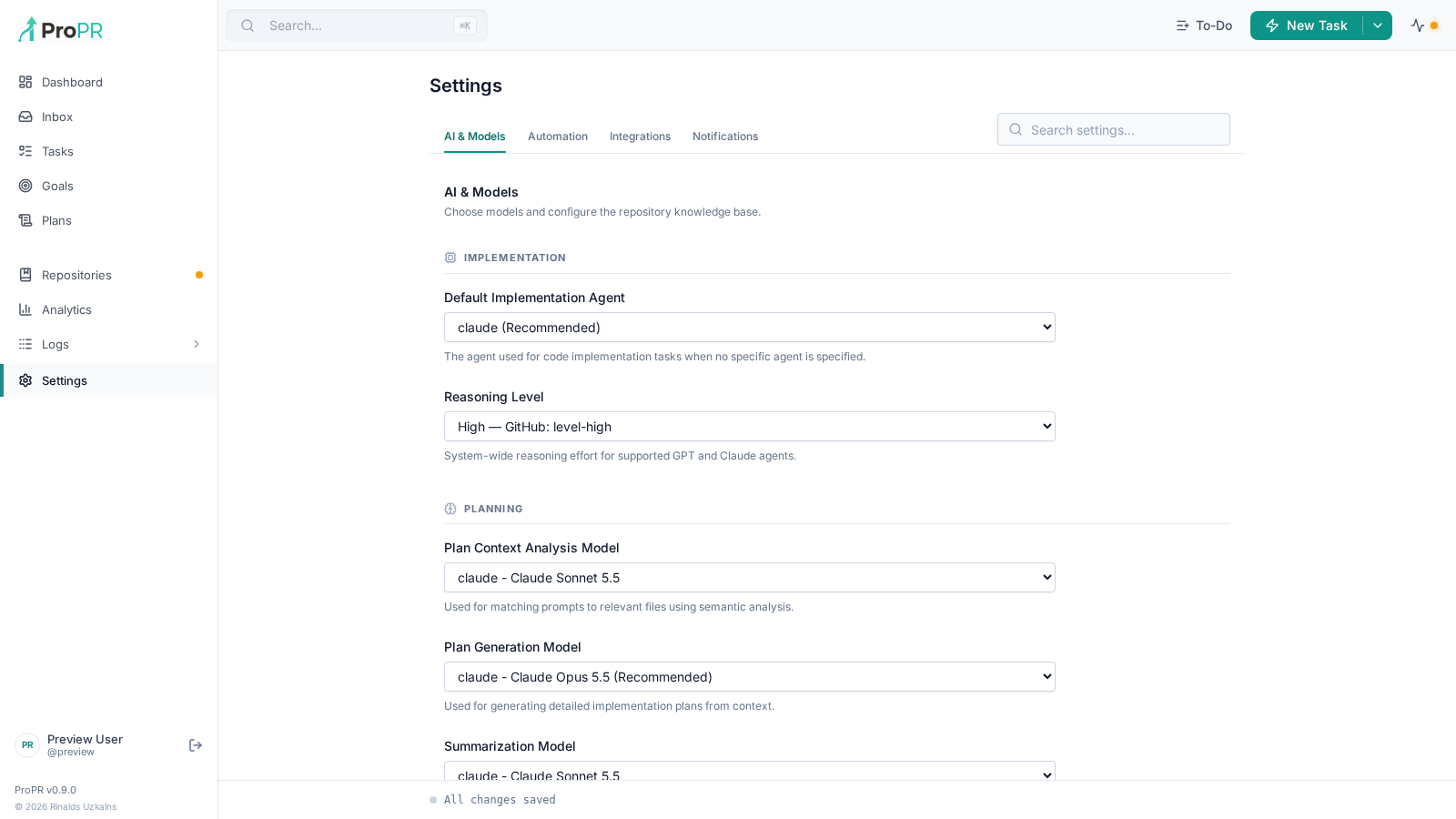
Settings (/settings) uses a contained form with tabs. Administrators see AI & Models, Automation, Integrations and Notifications. Members can access their personal notification and experimental voice preferences.
- AI & Models configures implementation, planning, review and summarization roles.
- Automation configures trigger users/labels, follow-up keywords, concurrency and review/merge rules.
- Integrations contains Agent Tank, runtime packages, MCP server and connected apps, visual preview uploads, managed storage and experimental voice controls.
- Notifications configures personal Inbox/push categories, quiet hours and browser subscription. See Inbox and push.
Access
Access (/admin/members) is available to administrators. It creates durable admin and member role assignments using stable GitHub user IDs, shows environment administrators configured through PROPR_ADMIN_USERS, surfaces recent role-audit events, and prevents removal or demotion of the last durable administrator. On a new installation, sign in as a configured environment administrator and use Store my administrator role before removing that username from PROPR_ADMIN_USERS.
Instance roles and the GitHub trigger whitelist (github_user_whitelist, edited under Settings) are separate: an assigned instance role lets someone use the web UI and MCP, while the whitelist controls who can start ProPR from GitHub issues and comments. After you add a user on the Access page, it offers to add them to the trigger whitelist when they are not already on it; after you remove a user, it offers to remove them from it as well. Either offer can be dismissed with Not now. No offer is made while the whitelist is empty (every non-bot GitHub user can trigger) or when the removal would leave it empty, because either change would silently flip the whitelist between open and restricted. Users already on the whitelist are marked on trigger whitelist in the role list.
Role assignments do not edit the GitHub trigger whitelist. Configure allowed login and trigger actors separately under Settings.
Live Updates And Shortcuts
The UI subscribes to socket.io events, so the dashboard, task list, task detail, and plan generation update without a refresh. The websocket is the normal path for every live surface — including the parts of the app shell that are on screen no matter which page you are on:
| What updates | When it updates | Event |
|---|---|---|
| Header activity monitor, active plans, tasks awaiting review | a task, plan or queue change is published | task:update, draft:update, queue:stats:update, activity:update |
| System health indicator and status modal | a daemon, worker, Redis, GitHub-authentication or coding-agent state changes, a repository index starts, finishes or fails, or agent capacity moves (per-file indexing progress is ignored) | activity:update (health, indexing, usage), usage:update |
| Inbox list and its unread badge | a notification is created, read or dismissed — including in another tab, or by a server-side cleanup such as a merged pull request | notification:update |
| Agent Tank usage bars | a provider quota changes | usage:update |
Polling is the fallback for a client whose websocket is unavailable, not the normal path: while the socket is connected and nothing is happening, an open tab issues no requests of its own. A hidden or backgrounded tab does no work either, and reconciles once when you come back to it — as does a tab whose socket dropped and reconnected. The Agent Tank Refresh usage button still asks the backend to re-probe the providers on demand.
Keyboard shortcuts: Cmd/Ctrl+K opens the search palette, j/k move through the Tasks list and the Inbox queue, x dismisses the open Inbox item, Alt+T opens quick add to-do, and Esc closes open popovers.
Visual preview settings
Under a repository's Visual previews controls, GitHub attachment plan
accepts auto, free, or paid. auto detects the upload credential owner's
plan only for repositories owned by that user. Unknown plans, organizations,
missing credentials, and API failures use conservative Free limits. Images
remain limited to 10 MiB; videos allow 10 MiB on Free and 100 MiB on paid.
Only the override is saved; resolved capacity is read-only. This setting does
not change the installation's Plus entitlement.
Settings → Integrations & MCP → Visual preview uploads contains the attachment credential and Managed preview storage status. Status is Enabled, Plus required, Disabled, or Unavailable. Refresh status reads Connect again. Quota, object maximum, and retention show Connect's effective values. When those values cannot be loaded, the UI explicitly labels the v1 standard defaults: 25 GiB installation quota, 500 MiB per object, 90 days. Unavailable storage leaves GitHub attachment publishing available. The managed viewer links require Connect authentication; the GitHub upload credential is still required for inline attachments.
See Visual previews for capture and publication behavior.