Planning Before Execution
ProPR is designed to put structure in front of agent runs. Instead of sending a vague issue straight to a coding agent, use Planner Studio to create a draft, gather context, review the plan, refine it, and approve the work when it is ready.
Why Planning Matters
Planning reduces the two most common failure modes in agent-driven development:
- The agent starts with too little context and solves the wrong problem.
- The agent attempts too much in one branch, making the result hard to review.
Planner Studio gives you a checkpoint before code changes happen. The plan makes the intended work explicit: what should change, what should stay out of scope, which repository and branch are targeted, and how the work should be split.
The Three Stages
Planner Studio moves a draft through three stages, shown in the stepper at the top of the page:
- Define & Context — enter the request, select the repository (and with it the configured base branch), choose the planning model, adjust the context level, and attach files. ProPR previews gathered context and an estimated issue count before generation.
- Review Plan — inspect the generated issues, edit or delete individual items, restore deleted ones, undo and redo edits, and send the plan back through refinement chat with follow-up instructions.
- Execution — after the plan is finalized into GitHub issues, track each issue's status (Pending, Processing, Review, Merged), pause or resume execution, and open the resulting pull requests.
A draft can be reset back to setup if the inputs were wrong, which makes planning useful for exploratory work as well as well-defined tickets.
A generated plan is saved only when every issue has a title, a body and an implementation section. If the planning model's JSON is malformed, the default coding agent repairs it in a scratch workspace, fixing syntax only, and a validator rejects any repair that drops, rewords or adds content. A response that holds only part of a plan, for example because the model stopped mid-plan, fails the generation with an error instead of being saved as a partial or empty plan; regenerate it, or choose a lower granularity for a shorter plan.
Revision history and refinement
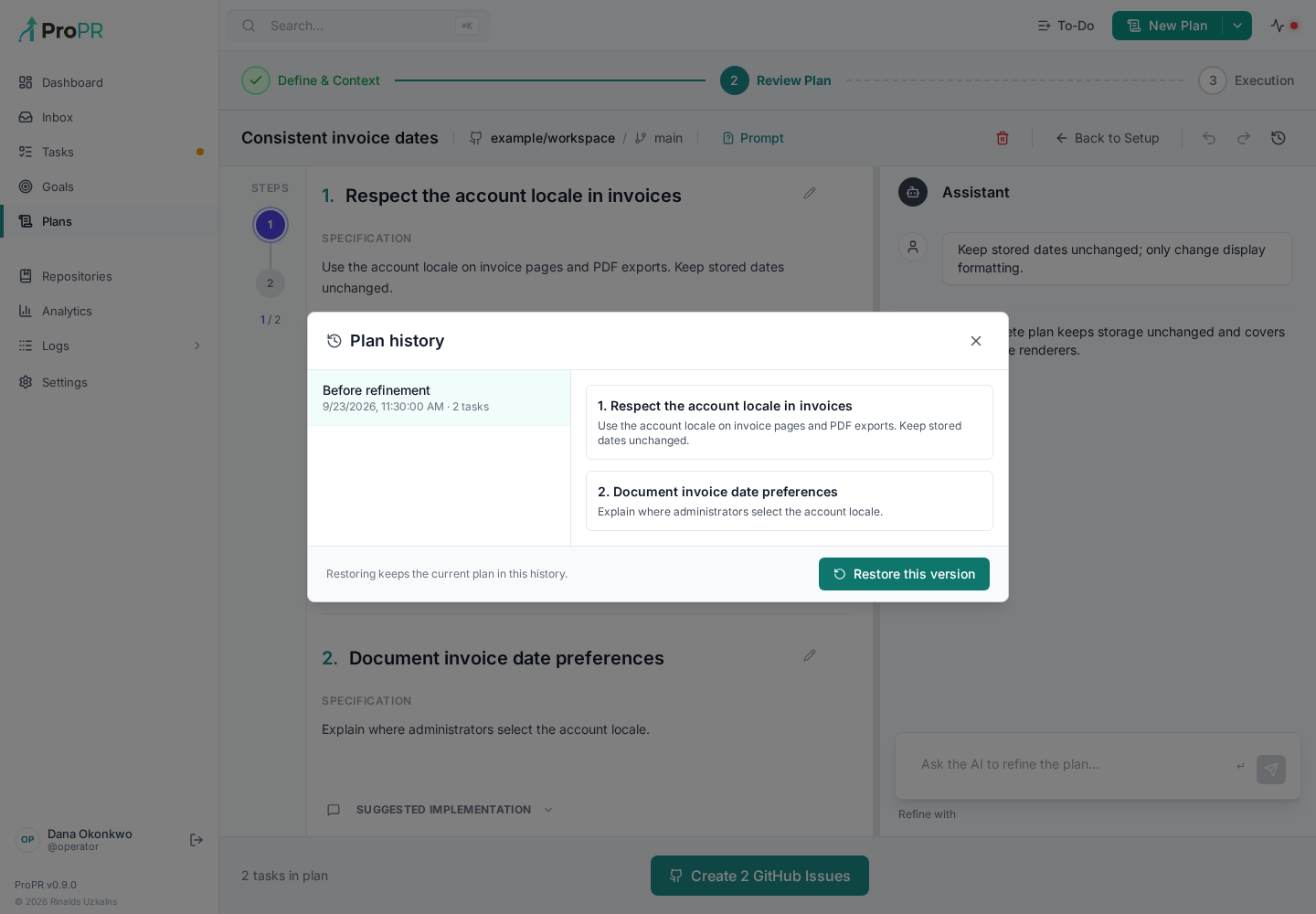
Open Plan history in the plan editor to inspect the plan saved before each generation, refinement, edit or rename. Each version is labeled with how it was created (Generated, Refined, Manual edit, Restored or Renamed; older versions show Legacy), and edits made within a few minutes of each other share one version. History keeps the latest 50 versions. Select a version to preview its tasks, then choose Restore this version. Restoring also saves the current plan in history. This persistent history is separate from the editor's immediate undo/redo controls and does not undo already-created GitHub issues or code changes.
Refinement returns the complete plan, including unchanged tasks, so review the full result before finalizing. Generation uses a structured file output and rejects incomplete issues rather than silently accepting a partial plan. Setup prompts auto-save; returning to setup lets you change context before regenerating.
Context Assembly
Planner Studio can include several kinds of context before generation:
- Repository selection from monitored repos
- Branch-aware planning based on the configured repository entry (see Branch Configuration)
- A context level setting that controls how much repository context is gathered
- File attachments, selected manually or automatically
- Context statistics and an estimated issue count before generation
The goal is not to flood the model with every file. The goal is to make the proposed work easy to inspect before it runs, so reviewers can tell whether the agent saw enough relevant context. Repository summaries and indexing improve this step; see Repository Knowledge.
How The Plan Is Written
The planning agent writes the plan to files instead of returning it in its reply: one file per issue, checked by a validator it runs itself and fixes until the plan is complete. ProPR validates the files again before saving the plan. A plan too long for one model message therefore arrives whole, and a plan with an incomplete issue fails with a clear error instead of being saved. Set PROPR_PLAN_GENERATION_MODE=response to parse the plan from the reply instead (see the configuration reference).
Review Before Running
Plans stay in draft until you finalize them. Before running anything, you can:
- Edit scope before implementation starts
- Remove risky or low-value steps (and restore them if you change your mind)
- Split oversized steps into smaller issues
- Add acceptance criteria
- Send the plan back through refinement chat
- Undo or redo plan edits
Finalizing the plan creates GitHub issues from the plan items (propr plan finalize does the same from the CLI).
Running From A Plan
After finalization, ProPR runs the planned work in a controlled way:
- Implement one planned issue at a time, or let the plan run sequentially
- Enable Epic mode with auto-merge so planned issues run one after another, each PR merging before the next issue starts
- Pause and resume execution from the Execution view
- Track each run as a task record
- Link generated pull requests back to the source plan
- Continue work later from the same planning context
For larger work, combine this with Work Splitting so the final pull requests stay reviewable. For a step-by-step walkthrough, see the Planner Studio tutorial.
Planning Only
Planner Studio is a standalone entry point. You can use it purely to produce well-scoped GitHub issues and stop there — implementation does not have to happen in ProPR.
When you finalize a plan, ProPR creates the GitHub issues without trigger or model labels, so nothing runs automatically. From there you can:
- Implement the issues manually, or hand them to another tool or agent.
- Refine the issue text directly on GitHub before anyone picks it up.
- Come back later and add a processing label (
AIorpropr) to have ProPR implement them after all.
This makes Planner Studio useful as a planning layer on its own, even for teams that do not use ProPR for implementation.