Launching Work
Use New Task for one bounded change, New Plan when you want to review a set of issues before execution, or New Goal for a continuing objective. The header defaults to New Task, switches to New Plan in Plans/Planner Studio, New Goal in Goals and New Automation in Automations, and keeps the other actions in its menu. All three use configured repositories and agents.
Start a task
- Open New Task (
/tasks/new) and select an enabled repository. - Enter the Prompt with the intended result and acceptance criteria. Attach relevant files if needed (up to 10), and choose an agent and model under Advanced Options when overriding the default. Plan first opens the same request in Planner Studio instead.
- Choose Run task. ProPR creates a GitHub issue and submits the ordinary implementation task. Follow the linked task for progress and its resulting PR.
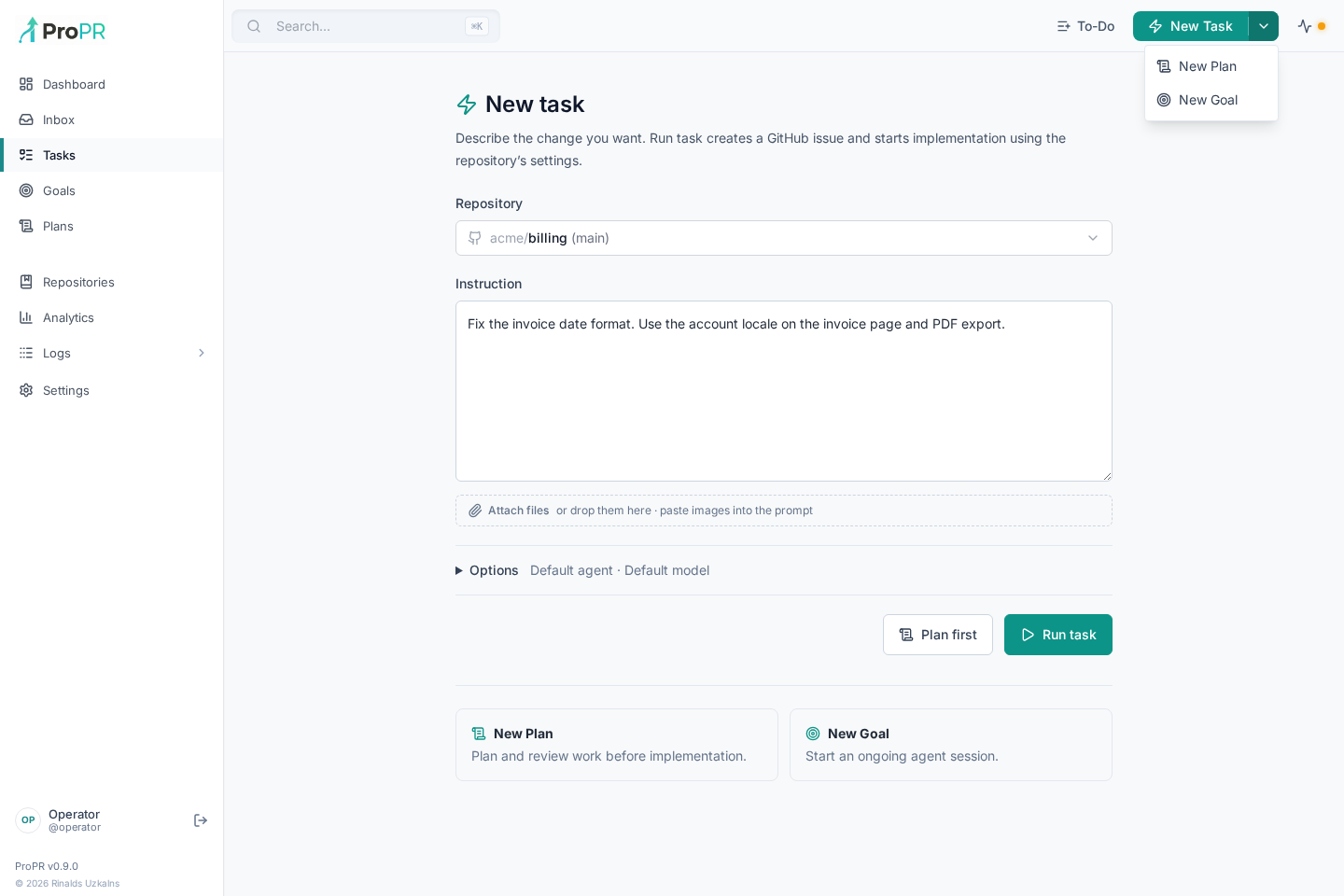
New Task preselects the repository, agent and model from your last task that created its issue or was queued; the choice is kept in this browser. A launcher that passes a repository, such as the repository workspace's New task action, overrides it, and a remembered repository that has since been removed or disabled is cleared.
Attached images also appear inline in the GitHub issue. ProPR uploads them with the visual preview upload credential (Settings → Integrations & MCP → Visual preview uploads) under the issue's attachment list, while the files themselves still reach the task worktree. Without that credential, or when an upload fails, the issue is created without the inline image; text attachments are listed only. See Visual previews for GitHub's attachment limits.
The repository workspace's New task action prefills the repository. Select a to-do and choose Run task to prefill its text; once the submission opens its GitHub issue, the to-do is marked complete and shows a #<issue number> chip that opens that issue. Reopen it from Completed Items if the work still needs doing; launching it again links it to the new issue. Submission acceptance is not implementation completion. If submission reports a failure or uncertain issue creation, use the displayed recovery action instead of starting duplicate requests.
MCP clients can use create_task with execute scope and a stable idempotency key, then follow the task and its pull request with get_task_submission; see MCP. create_task and POST /api/task-submissions accept an optional maxCostUsd that caps what the run may spend; see Spend caps. The CLI's existing issue implementation and task inspect commands are described in ProPR CLI.
Plan, goal or agent?
Planner Studio lets you edit, refine and approve a complete plan before creating issues. Goals keep an agent working toward an objective with progress, corrective inputs and pause/resume controls. Agents run a saved prompt on demand or on a schedule and write a report for recurring investigation.