Inbox and Notifications
Inbox collects plan, task, review, pull-request, indexing and system events. Open an item to reach its relevant task, plan or goal. More items load as you browse; read/dismiss changes synchronize across tabs. Dismissing an item does not cancel the work behind it.
Triage console
On screens 1280px and wider, Inbox is a triage console: clicking a row backed by a task opens its Triage Verdict beside the queue instead of leaving the page, and adds ?notification=<id> to the URL, so a reload or a shared link restores the selection together with any other query parameters. A link to an item on an older page loads more of the Inbox until the item is found; a link to an item that is no longer in the Inbox, or that opens no verdict, is dropped from the URL once every page has been read. Rows without a task — plans, and pull requests with no task behind them — open their destination directly, and Ctrl/Cmd-click or middle-click on any row still opens its destination in a new tab. With nothing selected the queue keeps the full width. Drag the divider to resize the two panes.
The verdict answers one question — why the agent stopped, and whether it is safe to tell it to continue. It shows:
- the repository, a PR or issue chip that opens GitHub, the status and a Done button that dismisses the item (separate from the pane's Close, which only hides the verdict);
- for a review, the score and each finding, with the
path:lineit points at when the reviewer named one; other notifications show their message; - a short diff of the task's changes: at most two files and twelve changed lines each, read once when the item is selected. A review commits nothing, so a review shows the diff of the run it reviewed;
- Inspect in Tasks, which opens the full task workbench at
/tasks/<id>, and the follow-up commands (/fix,/review,/ultrafix), shown only while the run the item reports on is still its task's newest.
Dismissing the item, or sending a follow-up command (which dismisses it), opens the next item in the queue straight away; after the last item it opens the previous one, and once the queue is empty the pane closes and Inbox shows You're all caught up. If the dismissal fails, the item returns and opens again. j/k and the arrow keys step through the queue and keep the selected row in view (with nothing open, j starts at the top; while focus is in the verdict the arrow keys scroll it instead), x dismisses the open item and Esc closes the pane. Keys typed into a field or pressed while a dialog is open are left alone. System updates stay in the collapsed System section and expand in place.
Inbox and Tasks answer different questions. Tasks is the permanent ledger: every task stays there, and its pane is the full diagnostic workbench with runs, files, logs and the terminal. Inbox is a queue you work down to zero: each row is the event that needs you, and items leave once you act on them or dismiss them. Use Inspect in Tasks when the verdict is not enough.
Below 1280px, Inbox is a single column and each row opens its task, plan, goal or pull request directly; on touch screens a swipe dismisses a row.
Inbox rows never carry follow-up commands, at any width. The commands appear in the verdict and in Tasks, on desktop and mobile, and both apply the same rule: only on the task's newest run, so a verdict for an older review offers no /fix once a newer run of its task exists. A review with findings offers /fix, and a finished run with a pull request offers /review and /ultrafix. Earlier runs, runs still working, and failed or merged runs offer none, so a command cannot be replayed from an older run. Once a command is sent for a run, its buttons stay disabled everywhere in the app until the page reloads.
Offline, Inbox keeps the notifications it already loaded and shows an offline banner; opening it with nothing loaded shows Inbox unavailable offline. It reloads on its own when the connection returns.
Choose what reaches you
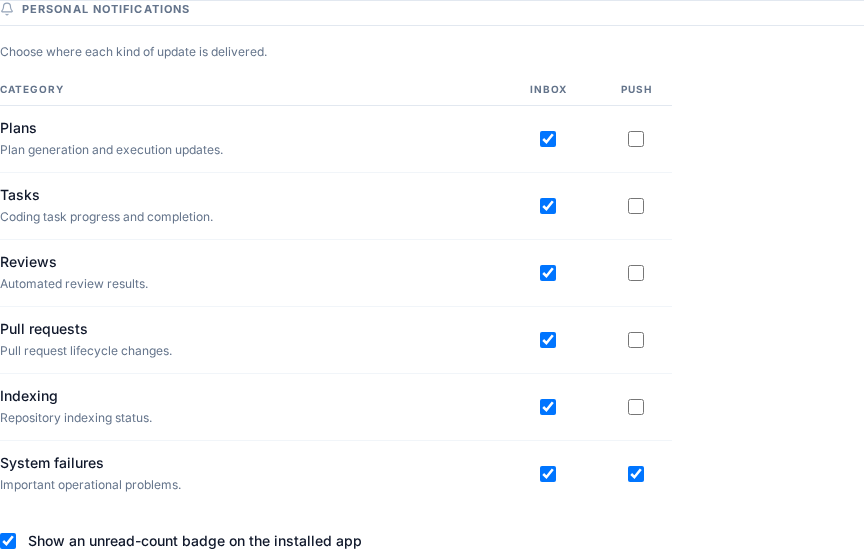
Open Settings → Notifications to choose Inbox and Push categories, quiet hours and badge behavior. These are personal preferences. In Repositories → Settings, the Notifications toggle suppresses future events for that repository across its branch entries. Automation continues, existing Inbox items remain, and system-health events are unaffected.
Install and enable push
Install the web app using your browser's install control. In Settings, choose Enable on this browser and grant notification permission, then enable Push for the desired categories. On supported iOS/iPadOS, add ProPR to the Home Screen in Safari and open that installed app before subscribing.
Browser support, HTTPS, permission and the server's push configuration determine delivery; an Inbox event does not guarantee an OS notification. See PWA and Web Push operations for VAPID configuration, proxy requirements, backup and recovery. Desktop native notifications and connection setup are covered in Desktop.